Reports: Overview
First, you should familiarize yourself with a general report view:
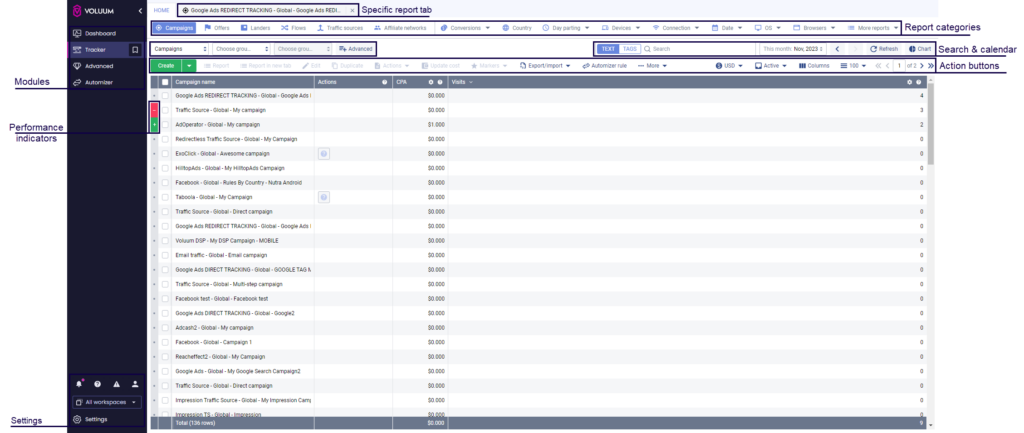
Most of the options will be available all the time; however, some of them (for example, report categories) are contextual and may change accordingly.
Report Types
The main way to differentiate one report from another is by the number of elements a report is based on:
-
Global Report
A report that is based on all elements from a given category is called a Global report. An example of such a report is the campaign report, which contains information about all running campaigns.
When should you use a global report?
- When you need to get a broader view of everything that is going on in your account. In global reports, you don’t have the drill-down option or the Live events category, so the highest level of data granularity is hidden. However, global reports offer a perfect sneak peek into your campaigns’ or offers’ profitability.
What report categories are there in global reports?
- Categories in Global Reports
Campaign Element Category
Description
Provides a list of campaigns with their characteristics

Provides a list of offers with their characteristics
Provides a list of landers with their characteristics
Provides a list of flows with their characteristics
Provides a list of traffic sources with their characteristics

Provides a list of affiliate networks with their characteristics
Provides you with a list of all recorded conversions for active campaigns. It also allows you to see visitor’s IP in the Visitor IP column.
Provides the traffic data divided by country
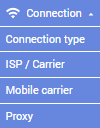
You can select the following sub-categories from the drop-down menu:
- Connection type: Provides the traffic data for different connection types (such as wired, WiFi, satellite, mobile).
- ISP/Carrier: Provides the traffic data divided by ISPs and carriers
- Mobile carrier: Provides the traffic data divided by mobile carriers
- Proxy: Provides data on the type of proxy used.
You can select the following sub-categories from the drop-down menu:
- Device types: Provides the traffic data divided by device types (such as mobile phone, desktop, tablet)
- Brands: Provides the traffic data divided by device brand
- Models: Provides the traffic data divided by specific device model
You can select the following sub-categories from the drop-down menu:
- OS: Provides the traffic data divided by operating system type
- OS version: Provides the traffic data divided by operating system version.
You can select the following sub-categories from the drop-down menu:
- Browsers: Provides the traffic data divided by browser type
- Browser versions: Provides the traffic data divided by browser version
Provides a list of records of errors that are encountered by the platform while in operation. This is the best place to check when you cannot see conversions in Voluum for a while, in particular after configuring a new setup of a campaign.
Specific Report
A report that is based on one element from a given category is called a Specific report. An example of such a report is the Sample Campaign specific report. A specific report is opened in a separate tab.
How to create a specific report?
- To open it, simply click an element from a report category and click the Report button. The specific report will open in a new tab, next to the HOME tab.
When should you use a specific report?
- Specific reports provide the most information about a particular element. They allow you to see live events or use the drill-down option. Use this report type to learn details about a given campaign.
What report categories are there in specific reports?
- Categories in Specific Reports
Campaign Element
Description
Provides a list of campaigns with their characteristics
Provides a list of offers with their characteristics
Provides a list of landers with their characteristics
Provides a list of flows with their characteristics
Provides a list of traffic sources with their characteristics
Provides a list of affiliate networks with their characteristics
Provides you with a list of all recorded conversions for the selected campaign or campaign element. It also allows you to see visitor’s IP in the Visitor IP column.
You can select the following sub-categories from the drop-down menu:
- Connection type: Provides the traffic data for different connection types (such as wired, WiFi, satellite, mobile)
- ISP/Carrier: Provides the traffic data divided by ISPs and carriers
- Mobile carrier: Provides the traffic data divided by mobile carriers
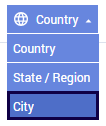
Provides the traffic data divided by country, state (region), or city. This is the only category where you can create a specific report for the selected country.
This category is visible only in the specific report for campaigns and allows you to view users’ IP addresses.
You can select the following sub-categories from the drop-down menu:
- Device types: Provides the traffic data divided by device types (such as mobile phone, desktop, tablet)
- Brands: Provides the traffic data divided by device brand
- Models: Provides the traffic data divided by specific device model
You can select the following sub-categories from the drop-down menu:
- OS: Provides the traffic data divided by operating system type
- OS version: Provides the traffic data divided by operating system version.
You can select the following sub-categories from the drop-down menu:
- Browsers: Provides the traffic data divided by browser type
- Browser versions: Provides the traffic data divided by browser version
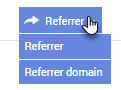
You can select the following sub-categories from the drop-down menu:
- Referrer: Provides information on referrer type
- Referrer domain: Provides information on referrer domain
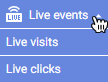
This option allows you to view the last 100 events, registered by Voluum. You can choose if you want to see clicks or visits by selecting an appropriate value from the Live events drop-down menu.
Tip
Voluum Tip: In order to refresh data and see the newest events, click the Refresh button.

Shows the list of languages that are identified from visitors’ browsers
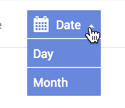
You can select the following sub-categories from the drop-down menu:
- Day: To analyze the gathered traffic data day-by-day
- Month: To take a look at the collected data for each month
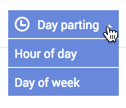
You can select the following sub-categories from the drop-down menu:
- Hour of day: To analyze the gathered traffic data hour-by-hour
- Day of week: To take a look at the collected data for each single day
-
Filtering by multiple campaigns
You can select up to 50 campaigns and create a specific-style report for all these campaigns.
How to create a specific report?
-
- Select between 2 – 50 campaigns and click the Report or Report in a new tab buttons
When should you use this type of report?
-
- This type of report is great when you want to see cumulative and detailed data for multiple campaigns.
-
Navigating reports
Voluum offers plenty of options to analyze your data:
- Search: Allows you to pinpoint elements that only contain the search term
- Tags: They can be added from reports directly or when creating/editing an element, and can help you categorize your data even further
- Date: offers you the option to only view data from the selected time or time range, or compare various time ranges with each other
- Columns: Columns define what data you can see in a report. You can turn column visibility on or off in the context of a given report and create columns templates.